多场景使用
### 新建 HTML 文件模板
```html
<!DOCTYPE html>
<html>
<head>
<meta charset="utf-8">
<meta name="viewport" content="width=device-width, initial-scale=1, maximum-scale=1">
<title>标题</title>
<meta name="description" content="">
<meta name="keywords" content="">
<link rel="stylesheet" href="../../../layui/css/layui.css" media="all" />
<link rel="stylesheet" href="../../../../css/public.css" media="all" />
</head>
<body class="p15">
<script type="text/javascript" src="../../../layui/layui.js"></script>
<script type="text/javascript" src="../../../js/util.js"></script>
</body>
</html>
```
### 新建 JS 文件模板
每次使用js时需按需引入, **父子页面沟通的方法** 不能写进里面
```javascript
onion.load(function (onion) {
var $ = onion.$ // 引入jq
var form = onion.form // 引入表单
})
```
### JS中 获取 URL 的内容
```javascript
var urlParams = onion.urlParams(location.search)
var type = urlParams['type'] // 任意值
```
### 按钮权限
#### HTML 页面操作
涉及接口权限的按钮, 需要权限校检, 如下面这个查询按钮
为按钮添上 layui-hide 和 limitBtn , 若无权限则隐藏, 有权限则显示
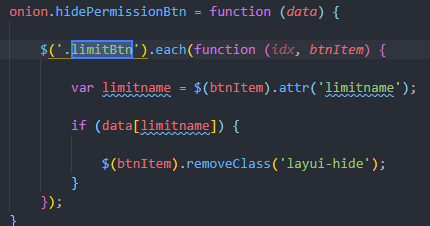
**自定义元素 limitname 中填入对应的权限即可**
```html
<button class="layui-btn layui-btn-radius limitBtn layui-hide"
lay-submit lay-filter="search"
limitname="customer:expressMonitor:page_list"
<i class="layui-icon"></i>查询
</button>
```
#### 权限获取
在页面中使用数据表格时, 会自动请求获取权限接口
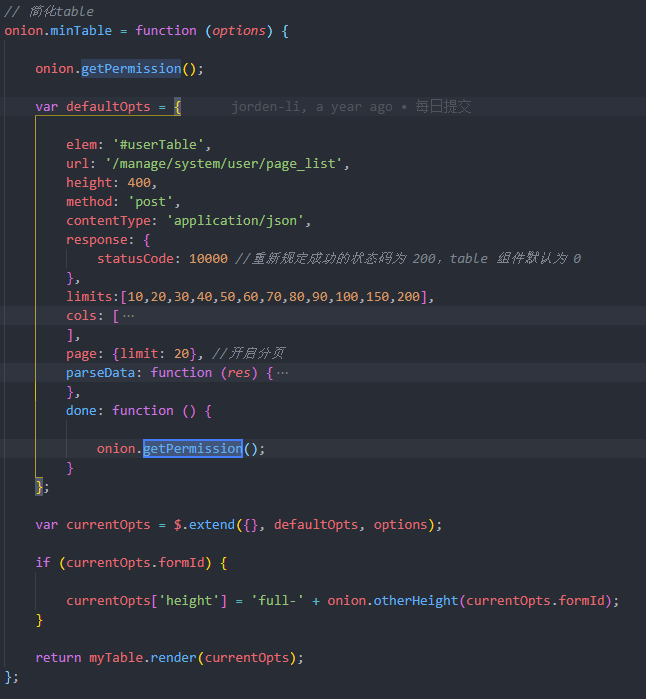
故可以在 F12 中查看到
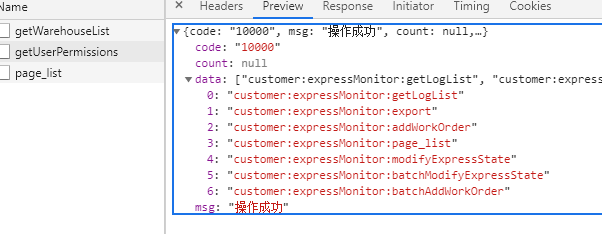
**根据按钮的功能, 在 limitname 中填入对应的权限即可**
若是页面中并没有使用数据表格, 则需要自行查询, **page 与 pageList.html 不可修改**

### 子页面弹出
```java
$("#import").on('click', function (e) {
layer.open({
type: 2, // 0(信息框,默认)1(页面层)2(iframe层)3(加载层)4(tips层)
title: ['页面标题', 'color:#009688'],
area: ['60%', '80%'], // 弹出页面大小
content: ['import.html?type=' + type] // 弹出import界面, 用url传参
})
})
```
[详细参数见](https://www.layui.com/doc/modules/layer.html#use)
### 关闭子页面, 并刷新父级页面
添加和编辑后, 可能需要刷新父级页面
```javascript
var index = parent.layer.getFrameIndex(window.name);
// 关闭页面
parent.layer.close(index);
// 1.刷新表格
parent.myTable.reload({
page: {
curr: 1 // 可控
}
});
// 2. 直接刷新页面
parent.location.reload()
```
### 弹出确认框
```javascript
function popUp(msg) {
layer.open({
type: 1,
content: '<div style="padding: 20px 50px">' + msg +'</div>',
btn: ['确认', '取消'], // 可更改
yes: function (index, layero) {
// 确认操作
},
btn2: function (index, layero) {
layer.closeAll() // 一般是关闭
},
})
}
// 更简单的用法
layer.confirm('真的xx吗', function (index) {
// 确认操作
});
```
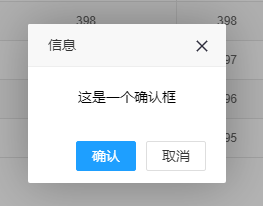
[详细参数见](https://www.layui.com/doc/modules/layer.html#use)
### 成功提示信息
用于调用接口成功后
```javascript
onion.layer.tipMsg("提示");
// 若不需要关闭页面或者刷新, 不需要定时器
setTimeout(function () {
// 下一步操作, 一般为关闭或刷新
var index = parent.layer.getFrameIndex(window.name);
parent.layer.close(index);
parent.location.reload();
}, 1500)
```

### 页面间数据传递
#### 中文的编码和转码
可能会遇到页面间的传参带中文的情况, 需进行转码
##### 转码
```javascript
encodeURIComponent()
```

##### 解码
```javascript
decodeURIComponent()
```

### Loading
当页面请求的接口较多的时候可以使用
```javascript
var index = layer.load();
```
带请求获取成功后, 再关掉
```javascript
layer.close(index);
```